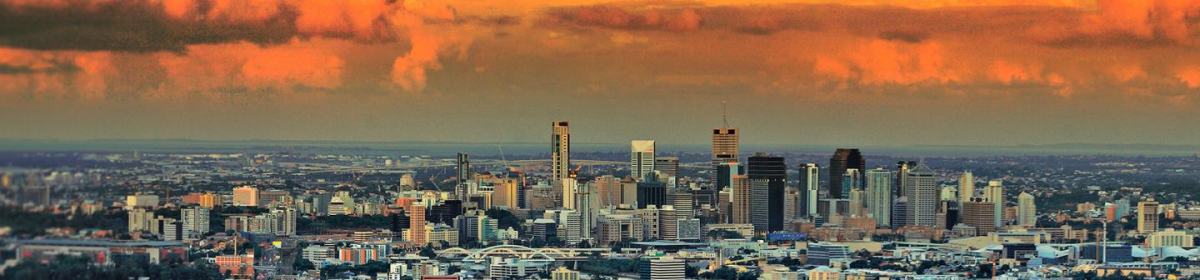
For Janus when he’s feeling better!
If you want a comprehensive explanation of the relationship between pixels and resolution then you will find it here.
This however is a very simple piece without any technical jargon.
If you imagine pixels are just dots of colour which when viewed all go to making your photo a reasonably accurate representation of the image you intended to photograph, it may help.
The general rule is the more pixels your photos contain, the more detailed and pleasing the image. My camera is set to take photos of roughly 2000 pixels in width, which is the maximum allowed. Yes, it is a bit old now and modern cameras will allow you to take bigger pictures. These are big files!
Now on this site, the maximum width for photos is only 700 pixels in width in posts and 600 in comments. So by reducing the number of pixels you are effectively throwing them away. The pictures still display pretty well on your screen at home, so you don’t need the additional pixels, and they take up room in the Media Library.
But once you have thrown away these pixels, you can’t put them back. Your photo-editing software will allow you to try, but it doesn’t work. You can, however, go back to your original large image to crop it and focus on a different part of your image without losing the crispness and turning it to mush!
If you are reducing or cropping photos, it’s a good idea to practise on a copy, so your original image is still intact, and you don’t have to worry.
 Boadicea's Chariot
Oops, I forgot to add don’t over-crop your photos; they need to be at least 700 or 600 pixels in width.
Nobody ever reads any of the help texts that Boadicea and I provided, let’s hope that you have more success, Araminta.
But don’t hold your breath.
Well I read them, Bearsy!
I must admit when I first started to use photo-editing software, I did have a bit of a struggle to take it all in. It took a while before it clicked.
I will rephrase that – only those who don’t need to, do. 😥
Idling my time away playing with a digital photoframe, with insufficient interest to do anything useful with it, other than turn it into a digital clock. I’m grateful for the “Oops” #1 and really liked the comment #4. :))
Glad you found my Oops afterthought useful, Peter!
It’s very odd, I am clueless about cameras and how they work. My father used to be a keen photographer and tried to explain it too me. It was all much too technical, and I must admit to a certain reluctance to tackle the subject.. It would be rather more useful to just sit down and work it all out, rather than relying on the post-production stage to rectify my all too regular photographic disasters.
I don’t, however, regard playing with computers or simple application software or how blog sites work as being particularly technical at all! Well, not at my level of er “expertise” anyhow.
I think the big problem is that people think that one can do anything with photo-editing programs – and they can’t.
If one doesn’t put enough data ( dots / pixels per inch) into the original photo or scan – there’s nothing any program can do to improve the quality of the picture. And the same is true of any image that has had that ‘data’ thrown away.
This is certainly true, Boadicea.
I found this out the hard way, quite a few years ago. I helped some friends who had a side-line in antiques, and they decided to build a website. She was a pretty good photographer but neither of them knew much about websites, computers or the like.
I had to do a swift course in Photoshop and images in general. So armed with my invaluable copy of Photoshop for Dummies, I muddled my way through at first. I had to produce images to upload onto the website, others to print in blurb to send out to potential customers, and others to be included in glossy magazines.
Made plenty of mistakes at first, but learnt an awful lot.
I used Microsoft Paint to do my cropping on my recent post, no need for fancy (expensive) software, I achieved the exact effect that I was looking for without any books or classes!
Quite right, Soutie. You don’t need expensive software to do simple tasks like resizing or cropping. I use Picasa, but I do have Photoshop Elements for more advanced stuff.
Arrers, you are too kind! Thank you for your concern and advice.
I’m using paint too – and I will try harder, I will try harder, I will……… 🙂
No problem, Janus.
If at first you don’t succeed and all that!
I know that you can use Paint to do basic crops and resizing but I’ve never tried it myself.